How To Link Twitch To PS5 Account Connection Guide
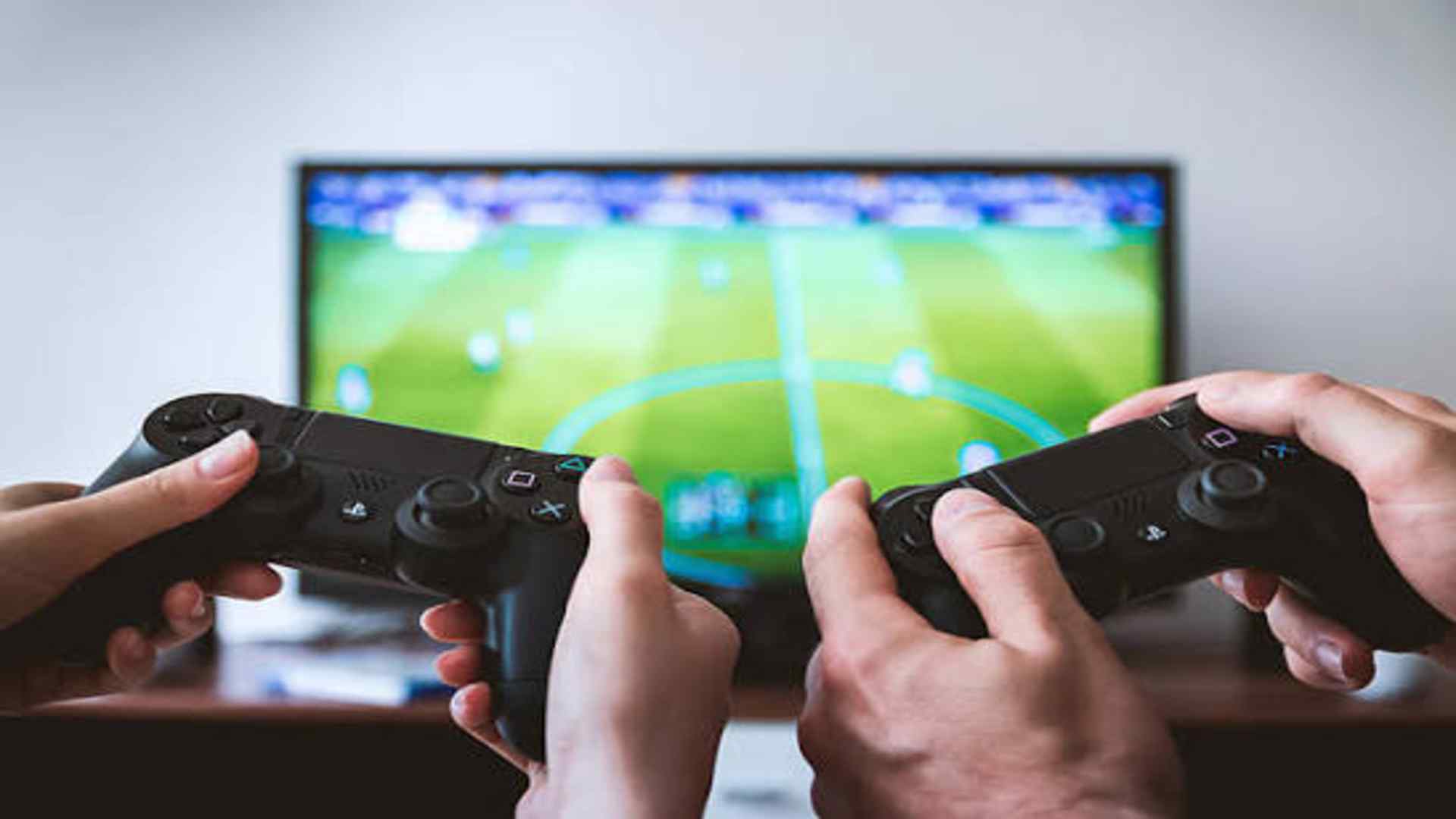
Broadcasting your gameplay directly from the PlayStation 5 to Twitch is one of the easiest ways to share your favorite gaming moments with friends and global audiences. Setting up this connection allows you to go live instantly without requiring expensive external capture cards or complex desktop streaming software. Understanding how to sync your accounts properly ensures a stable connection and smooth streaming sessions every time you hit the broadcast button.
Accessing the PS5 System Settings
To begin the connection process, navigate to the main home screen of your PlayStation 5 console. Click on the gear icon located in the top right corner to open the system settings menu. Scroll down through the menu options until you find Users and Accounts, then select it to view your account management options.
Within the Users and Accounts menu, locate the Linked Services tab on the left side of your screen. This section displays all third-party platforms that can be integrated with your PlayStation Network account. Select Twitch from the list of available services to initiate the authorization prompt.
Completing the Twitch Activation Process
Once you select Twitch, your console will display a unique web link alongside an activation code and a QR code. You can quickly scan the QR code using your smartphone camera or open a web browser on a computer to enter the web address. Enter the alphanumeric code displayed on your TV screen into the activation field.
If you are not already logged into your Twitch account on your mobile device or browser, you will be asked to sign in. Review the permission request that grants PlayStation permission to interact with your streaming channel, then tap Authorize. Once confirmed, a notification will appear on your console confirming that your accounts are successfully linked.
Starting Your First Broadcast From the Control Center
With your accounts officially paired, launching a live stream is fast and straightforward. Simply boot up the game you want to stream and press the Create button on your DualSense wireless controller. Choose the Broadcast icon from the bottom overlay menu to open your stream customization panel.
Before taking your broadcast public, you can adjust vital settings such as video resolution, overlay positioning, and party voice chat inclusion. Give your live stream an engaging title so potential viewers know what gameplay content to expect. When everything is configured to your satisfaction, select Go Live to start streaming immediately to your Twitch channel.
Managing and Troubleshooting Your Connection
If you ever experience streaming delays or connection errors, verifying your account status in the Linked Services menu is a helpful first step. Ensuring that two-factor authentication is enabled on your Twitch account can also resolve common broadcasting issues on modern consoles.
If you ever need to transfer your console access to a new channel or resolve persistent sync glitches, unlinking your profile takes only a few button presses. Returning to the Linked Services tab allows you to remove the connection safely at any time. Reauthorizing the connection afterwards often solves minor software bugs and restores normal broadcasting functionality.